
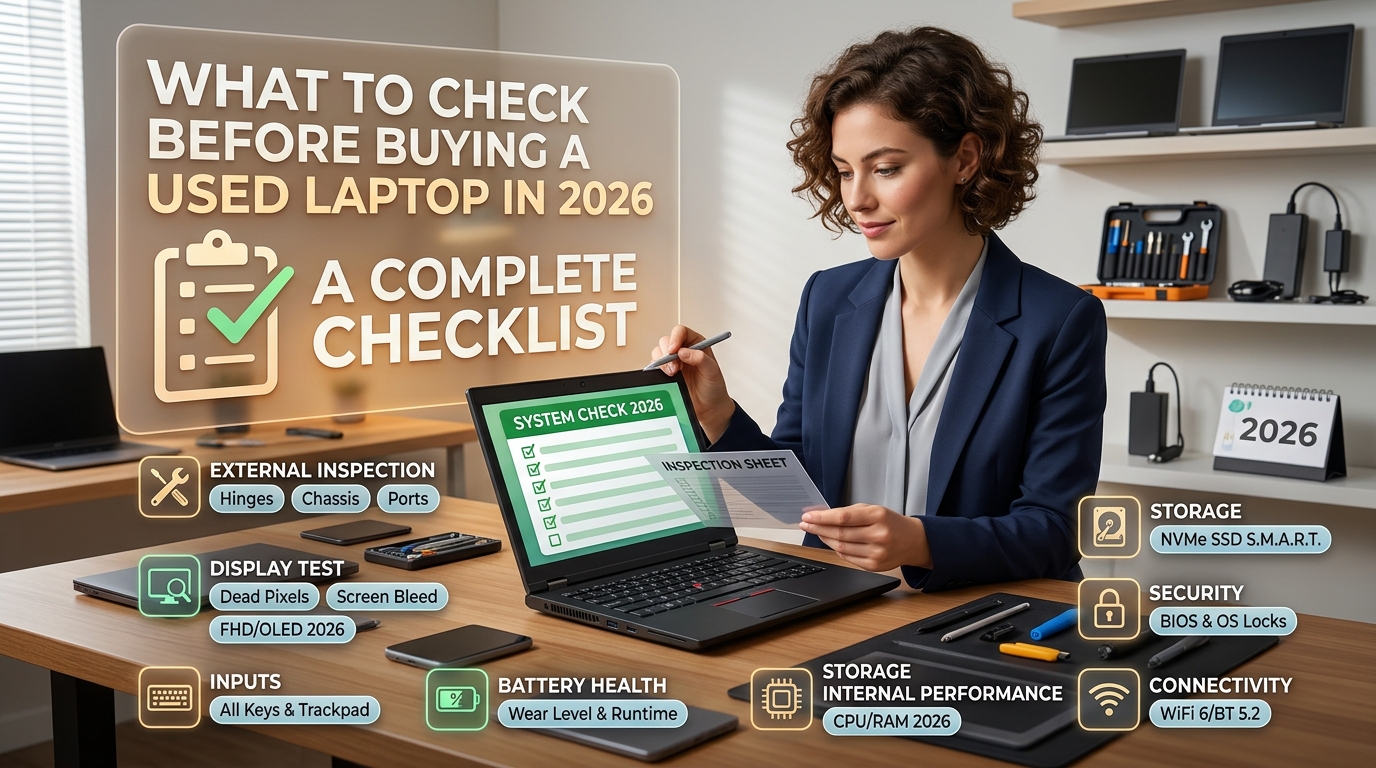
What to Check Before Buying a Used Laptop in 2026: A Complete Checklist
A used laptop can be a smart buy. A two- or three-year-old business model often costs half of what it did new and still handles everything most people throw at it. But it can also hide a worn-out battery, a replaced screen, or a locked motherboard.
I’ve bought and resold used laptops for years, mostly ThinkPads, Dells and a few MacBooks. The best deals came from a calm 20-minute inspection, and the worst mistakes came from skipping it. This guide covers what to check before buying a used laptop in 2026, in the order I’d do it.
Why a Used Laptop Checklist Matters More in 2026: what to check before buying a used laptop
Hardware has changed in ways that affect used buyers. Windows 10 reached end of support in October 2025, so older machines that can’t run Windows 11 are a poor bet. Many newer laptops also have soldered RAM and storage, which means a weak spec can’t be fixed later. Fraud and stolen-device listings are also common on marketplaces.
A written checklist keeps you from being rushed, and it gives you a fair reason to negotiate.
Step 1: Set Your Needs and Budget First
Before you open a single listing, decide what the laptop is for.
- Office work, browsing, study: 8 GB RAM is the minimum, and 16 GB is more comfortable. Pair it with an SSD.
- Programming or light editing: 16 GB RAM and a recent quad-core or better processor.
- Gaming or video work: A dedicated GPU matters, and so does cooling, which is harder to judge secondhand.
Set a ceiling and keep about 10% in reserve for a new battery, fresh thermal paste or a storage upgrade.
Step 2: Verify the Seller and the Listing
Ask for the exact model number and serial number before meeting. If the seller refuses, walk away.
- Search the serial number to confirm the specs match the listing. For Apple devices, Apple’s coverage checker shows the model and warranty status.
- Ask for the original receipt or purchase history if there is one.
- Meet in a public place and, if you can, test the laptop there with a power outlet nearby.
- Be wary of prices far below market. The FTC’s consumer guidance explains common online buying scams.
Step 3: Inspect the Physical Condition
Look at the Body and Hinges
Open and close the lid several times. It should move smoothly without creaking, wobbling or gaps. Look for cracks near the hinges, mismatched screws and bent corners. These suggest drops or a past repair.
Check the Screen
Turn the brightness to maximum and display a white, then a black, full-screen image. Look for dead pixels, yellow patches, flickering, burn-in on OLED panels, and pressure marks. A screen replacement is often the most expensive repair on a laptop.
Test the Keyboard and Trackpad
Type in a text editor and press every key, including the function row. Check that the trackpad clicks properly and supports multi-finger gestures. Shiny, worn keys aren’t a defect, but they tell you how heavily the laptop was used.
Test Every Port
Plug something into every USB-A, USB-C, HDMI and headphone port. Test the charging port with a charger you know works. A loose DC jack or USB-C port is a common failure.
Step 4: Check the Battery Health
Battery condition is the most overlooked item on any used laptop checklist, and it’s the one that costs you money later.
- On Windows: Open Command Prompt as administrator and run powercfg /batteryreport. Compare “design capacity” with “full charge capacity.” If the full charge is well below 70% of design, expect short battery life and a replacement soon.
- On a Mac: Open System Settings, go to Battery, and check the health status and cycle count. Apple lists the maximum cycle counts for each model on its battery support pages.
- Swollen batteries: If the trackpad is lifting or the case bulges, don’t buy it. This is a safety issue.
If the battery is weak but the laptop is otherwise excellent, use that as leverage. A replacement is often cheap, but find the price first.
Step 5: Check the Specs Match the Claims
Don’t trust the sticker or the listing. Check the real specs yourself.
- Windows: Press Windows + Pause, or open Settings > System > About.
- Mac: Apple menu > About This Mac.
- Look up the processor on Intel ARK or AMD’s product pages to confirm the generation and core count. “Core i7” can mean very different chips depending on the year.
- Check that it meets the Windows 11 requirements if you plan to stay on a supported system.
For Macs, be careful with Intel-based models. Apple has moved to its own chips, and Intel Macs are falling out of new macOS releases, which shortens their useful life.
Step 6: Test Storage and Memory Health
Check the Drive
Run a free tool such as CrystalDiskInfo on Windows to read the drive’s SMART data. Warnings like “Caution” or “Bad” mean walk away. An SSD is strongly preferred over a hard disk drive in 2026.
Check RAM
Open Task Manager and confirm the total memory and speed. Note whether the RAM is soldered or upgradeable. The iFixit repair guides are useful for seeing how easy a given model is to open and upgrade.
Step 7: Run a Performance and Heat Test
A laptop that looks perfect can still throttle badly.
- Boot it and time how long it takes to reach the desktop.
- Open several browser tabs and play a 4K video.
- Run a short stress test with a free tool such as HWiNFO for monitoring, plus a benchmark.
- Listen to the fans. Grinding or constant maximum speed often means dust, dried thermal paste or a failing fan.
- Feel the chassis. It will be warm, but a burning hot palm rest at idle is a bad sign.
Ten minutes of load shows you far more than the seller’s description.
Step 8: Test the Webcam, Microphone, Speakers, Wi-Fi and Bluetooth
These small parts are easy to forget and annoying to fix.
- Record a short video and audio clip to check the camera and microphone.
- Play music at several volumes and listen for crackling.
- Connect to Wi-Fi and pair a Bluetooth device.
- If the laptop has a fingerprint reader or face unlock, test it.
Step 9: Check Software, Security and Locks
This is where many buyers get burned.
- Ask the seller to sign out of everything and factory reset the device in front of you, or do a fresh install of Windows.
- Windows laptops: Make sure it’s not tied to a company or school management account, and that the Windows license is activated. Check Settings > System > Activation.
- Macs: Confirm that Find My and Activation Lock are turned off. A locked Mac is effectively a brick. Apple explains this on its Activation Lock support page.
- Business laptops: Look for a BIOS or firmware password. If you can’t enter the BIOS, don’t buy it.
- Check that the operating system is genuine and up to date, and that there’s no leftover remote access software.
Step 10: Think About Warranty, Returns and Total Cost
Ask about return rights, even for a private sale. Refurbished laptops from reputable sellers or manufacturer-certified programs usually include a warranty, which is worth a slightly higher price. If you’re buying from a marketplace, use a payment method with buyer protection.
Work out the total cost, not just the sticker price. Add a possible battery replacement, a RAM or SSD upgrade, and a clean install. If the sum approaches the price of a new budget model with a warranty, the used one may not be the bargain it seems.
Quick Printable Checklist
- Serial number matches the listing
- No cracks, hinge wobble or swelling
- Screen free of dead pixels and burn-in
- All keys, ports and the trackpad work
- Battery health above roughly 70–80%
- Specs and processor generation verified
- Drive health reads “Good”
- Fans quiet, temperatures reasonable
- Camera, mic, speakers, Wi-Fi and Bluetooth work
- No activation lock, BIOS password or management profile
- Return policy or warranty confirmed
Frequently Asked Questions
Is it safe to buy a used laptop online?
It can be, if you verify the serial number, pay through a protected method and insist on a return window. In-person testing is safer when possible.
How old is too old for a used laptop?
For Windows, a laptop that can’t run Windows 11 is risky now that Windows 10 has reached end of support. Practically, anything older than about five or six years deserves extra scrutiny, especially on battery and storage.
How much RAM and storage do I need?
For general use, 16 GB of RAM and a 256–512 GB SSD is a comfortable baseline in 2026. You can go lower for simple tasks, but check whether the memory can be upgraded.
Should I buy used or refurbished?
Refurbished units from a reputable seller are tested and usually come with a warranty. Private used sales are cheaper but carry more risk, so the checklist matters more.
What’s the single biggest red flag?
A seller who won’t let you test the laptop or reset it in front of you.
Conclusion
Knowing what to check before buying a used laptop turns a gamble into a decision you can defend. Verify the seller, inspect the body and screen, test the battery and drive, stress the machine, and make sure no lock is attached to it. Do that, and a used laptop can serve you well for years at a fraction of the new price.
If you can’t complete these checks, or something feels off, walking away is always the right call. There will be another listing tomorrow.